|
PAYMENT REPORT The Payment Report provides the ability to see payments and adjustments applied to claims utilizing mutliple sort options. Payments and adjustments posted via ERA or manual payment entry can be shown.
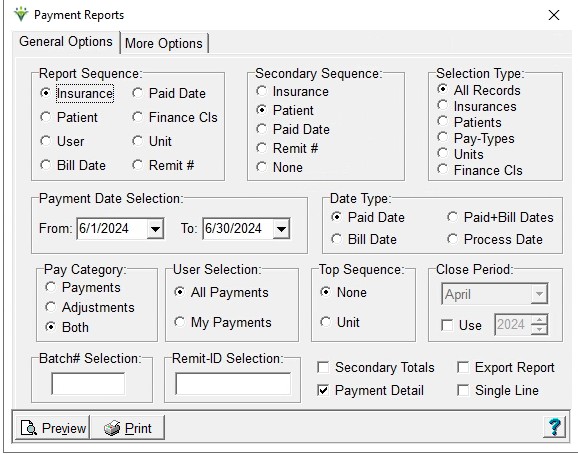
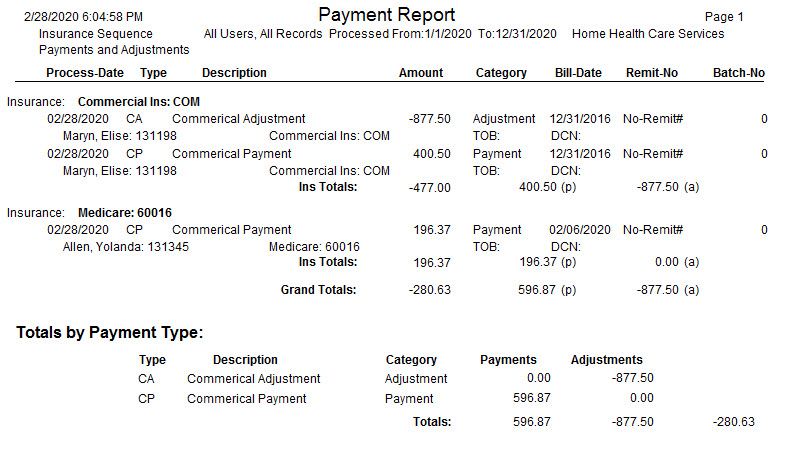
General Options tab Report Sequence: Select sort order for the report. Secondary Sequence: Select secondary sort order for the report. Selection Type: Select to print report for All Records, or specific Insurances/Patients/Pay-Types/Units/Financial Class (use Specific Includes tab to select records) Payment Date Selection: Enter Date Range. The date used is dependent on the report Date Type selected. For example if Date Type is Paid Date, the date range will apply to the Payment Date. Date Type: Select to print a payment report based on Paid Date, Bill Date, Paid+Bill Dates (enter Bill Date selection on 'More Options' tab) or Process Date (date payment was entered into HAS). Pay Category: Select to print Payments, Adjustments or Both. User Selection: Select All Payments or My Payments (shows only those entered under your login name). Top Sequence: Select top sort order for the report. Close Period: This option is enabled only when Visit-Based Revenue Reporting is enabled and the "Use" box is selected. This will allow the user to run a report with only records for that selected period. Batch-No: Leave blank for all Batches or enter a Payment Batch#. Batch numbers are optionally entered by the user during payment entry. Remit-ID: Leave blank for all remittance #s or enter a specific remit-ID Secondary Totals: Check to see subtotals for the "Report Sequence" selection. For example, if Report Sequence is set to 'User' the report will show subtotals by User.Payment Detail: Check to show payment posting detail (patient, pay date, pay type, amount etc) Export Report: Check to create an export file that can be viewed/edited in Excel. Single Line: Option is enabled when Payment Detail is selected. More Options: 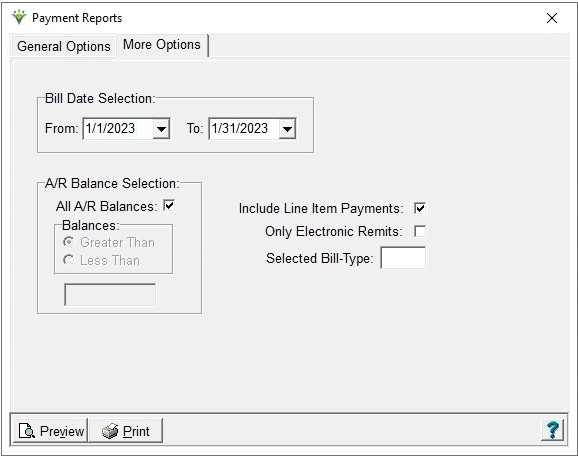 Bill Date Selection: Enter From and To Date Range to be used if Bill Date was specified as a Date Type in General Options tab. A/R Balance Selection: Check All A/R Balances or uncheck and specify a Greater Than/Less Than Amount Include Line Item Payments: Check to include line item payments rather than summary payments. Can be used when claims were submitted with bill option 2400.35 set to Line Item Control Number and payments were either manually posted with detail line item payments or Electronic Payments were posted with the Show/Post Charge Detail option selected. Only Electronic Remits: Check to only include payments posted via the Electronic Payments menu. Selected Bill-Type: In ver 1.2.8.44 or higher, payments posted electronically will store the Bill Type. Enter a Bill Type (ex: 322 for Medicare Raps) to run the report for only that type of bill. Sample Payment Report:
|