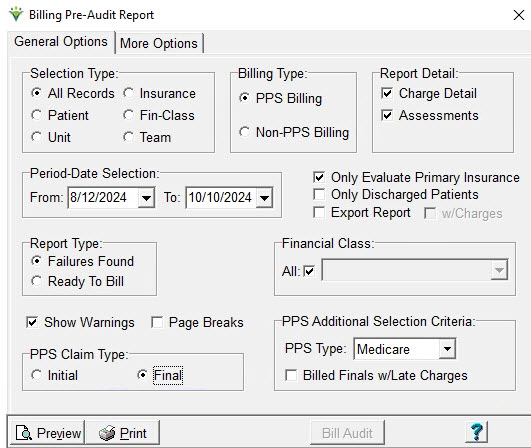
PPS Billing Type:
NOTE:
To exclude patients who had a ROC or Recert assessment completed for a
period that will not be billed, enter an end date for the PPS payer for
that patient and in the Patient Certify tab enter an Actual End-Date.
Report Detail: Select the level of
detail (charges and/or assessments) to display on the report.
Selecting both is recommended.
Cert-Date Selection: Enter the From
and To dates of the certification periods or episodes you will be
billing for.
Only
Evaluate Primary Insurance: Check to only report patients who have a
PPS Insurance or the specified Insurance/Financial Class listed as
their primary payer.
Only Discharged Patients: Check to include
only patients who have a discharge date for a cert that falls
within the report date range.
Export Report: Choose to save
report as an XLS file.
Report Type: Select 'Failures
Found' to identify episodes that
are missing information required prior to billing.
Select 'Ready to Bill' to identify patients who
are ready for a Billing Audit.
Financial Class: Leave 'All
Classes' checked or uncheck and select a class from the dropdown.
Show Warnings:
Check the
box to show warnings related to the episode (warnings will not prevent
the bill audit from being processed).
Page Breaks: if checked the report
will page break on patient.
PPS Additional Selection Criteria:
PPS Type: Set to Medicare or NY
Medicaid (for EPS)
Billed
Finals w/Late Charges: Checks for PPS Episodes that have
already been Final Billed but have charges that have not been billed.
PPS Claim Type: Initial
(RAP) or Final.
Bill
Audit button: This button will appear after previewing/printing a Ready
To Bill Report. The link will take the user to the Billing Audit menu
and the selections and patients that appeared on Billing
Pre-Audit Report as "Ready To Bill"
will be pre-selected in the Specific Incudes tab (patients can then be
removed from this tab if desired).
More Options Tab:
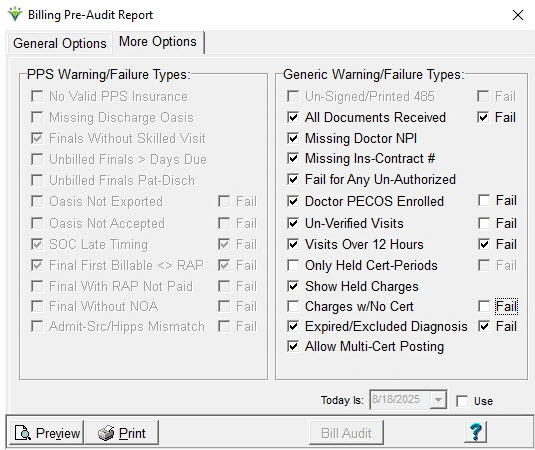
PPS Warning/Failure
Types: Select to check for additional
exception criteria.
No
Valid PPS Insurance: Check to show a Failure when the PPS
insurance's effective dates do not cover the episode. If un-checked,
these records will not appear on either the Ready to Bill or Failures report.
Missing Discharge Oasis: Check to
show patients with a discharge date but no OASIS discharge assessment
on file.
Finals
Without Skilled Visit: (NY Medicaid EPS only) Check to show episodes ready for a
Final
bill but no skilled charges are present for the episode.
Unbilled
Finals > Days Due: Check to show periods/episodes
where
the end date is greater than 30/60 days from the report To Date.
Unbilled Finals Pat-Disch:
Check to show periods/episodes not Final billed but the patient has a
discharge date present.
OASIS
Not Exported (Fail): Check the box to show a warning for
periods
where the OASIS assessment used for HIPPS scoring is not marked
Exported (picked up in a submission file for export to iQIES).
If
"Fail" is checked it will show as a Failure instead of a Warning (Finals only).
OASIS
Not Accepted (Fail): Check the box to show a warning
for periods/episodes where
the OASIS assessment used for HIPPS scoring is not marked Accepted
per iQIES response report (marked as Accepted via OASIS
Acceptance import routine or manually marked Accepted).
If "Fail" is
checked it will show as a Failure instead of a Warning for Finals but RAPs will only show as a Warning type.
SOC
Late Timing (Fail): Check the box to show a warning if the patient
discharged and readmitted within 60 days SOC and the Late box isn't
checked in the Patient record. If "Fail" is checked it will show as a
Failure instead of a Warning.
Final First Billable <> RAP: Check the box to show a Warning for periods prior to 1/1/2021 if
the first
billable visit date has changed since the RAP was posted.
Final With RAP Not Paid: Check the box to show a Failure if a RAP
payment hasn't been applied to the period via an Electronic Remittance
posting. This edit can only be run as a Failure and not a Warning type.
Final
Without NOA (Fail): Check the box to show a Failure if no NOA Date
found for the patient admission. If "Fail" is unchecked it will show as
a Warning instead of a Failure. If NOA Required is checked at the Insurance level, the Final will fail for any patients with no NOA date present.
Admit-Src/Hipps
Mismatch (Fail): Check the box to show a Warning if the patient
admission source is 4 or 5 (indicating from an institution) but there
is no inpatient institute (facility) present in the Patient Assign tab.
A Warning will also occur if an inpatient Institute is present
but the admission source is not a 4 or 5. If "Fail" is checked it
will show as
a Failure instead of a Warning.
Un-Signed/Printed
485 (Fail): Check this to show a warning for patients with a 485
Order
record in the Patient file Certify tab that doesn't have the Printed
(RAPs) or
Signed box checked for the POC covering the service dates. Uncheck the box to turn off the
warning message. Shows as Failure instead of a warning if Fail
checked. This option is only enabled if "All Documents Received" option
is unchecked.
All Documents Received (Fail): If checked, PDGM periods with Documents
(Patient file Docs tab) missing a Received Date will show a Final
claim failure message. If the documents don't have an Effective
Date present, the system will look to the All Docs Received status to
determine if the Failure should be shown (Patient file, Certify tab). The Sent and Received Dates of the documents are updated
when
the Order Sent and Order Returned marks are applied via the Clinical
Physician Order Tracking report as long as the Order is configured as Order Exportable in Clinical.
Missing Doctor NPI: check this option to show a warning message if the Order doctor NPI is missing from the Doctor record.
Missing
Ins-Contract #: check the option to show a warning message if the
patient's Insurance ID number is missing from the Patient file
Inssurance tab.
Fail
for Any Un-Authorized: check this option to show a failure message
for all charges if any charges on the report are not attached to an
authorization.
Doctor
PECOS Enrolled: When set to Warning, this option checks the
doctor file for a PECOS verification date and will produce a Warning
and not an Exception. When the Fail
option is selected, patients whose doctors do not have the Home Health
PECOS Type will not be included on the Bills Ready report.
Un-Verified
Visits (Fail): This option checks for visits that are
un-verified
(not marked Completed). For Non-PPS, if the Fail box is checked,
all visits will fail if any unverified visits are found. If the Fail
box is unchecked, a warning will appear for unverified visits and only
the verified visits will pull to the Billing Audit. For PPS
Billing un-verified
visits
will always cause a failure for the Final Claim. RAPs will fail only if
the first billable visit found is marked unverified.
Visits
Over 12 Hours: This option edits for visit time greater
than 12 hours. Check the corresponding Fail
option to have this exception appear as a failure instead of as Ready
To Bill with a warning.
Only
Held Cert-Periods (Fail): check this option to only show Certs that are
marked as Held within the Patient file Certify tab. Certs can manually
be marked Held to keep them from billing until ready. This edit can
only be run as a Failure and not a Warning type for PPS and non-PPS.
Always defaults to unchecked each time the report window is opened.
Show
Held Charges: check this option to display charges marked as Held on
report output. Held charges are indicated with an 'h' on the report.
Valid for Non-PPS only. PPS Finals will Fail if any held charges
are found in the period. Visits that are not going to be billed
should be changed to a Missed or Non-Billable charge code instead of
being marked Held.
Charges
w/no Cert (Fail): check both boxes to fail all visits if any visits are
not covered by a certification period. If the Fail box is
unchecked, a Warning message will show for some charges outside
available cert periods and only the charges covered by a cert will pull
through to the Billing Audit (non-PPS only).
Expired/Excluded
Diagnosis (Fail): when checked for non-PPS, shows warning if charges
are covered by a certification period with a 485 containing a
diagnosis code that expired prior to the certification end date. If the user
opts to let the charges through with the Warning message, the expired
diagnosis codes will not pull to the electronic claim. This
edit also produce a warning if the associated 485 contains
diagnosis codes that are excluded from being billed together (per the
Excludes1 Notes in the ICD-10 table supplied by CMS). If
Fail is checked, shows as a Failure instead of a Warning.
Allow
Multi Cert Posting: when checked, alllows charges spanning more than
one certification period to be billed in the same run (non-PPS only).
EVV
Visits Not Ready (Fail): active for MCG+ clients only. Check this
option to hold visits from being billed until Accepted in MCG+
(non-Aggregator States) or until Completed Hold (Aggregator States).
If Fail is checked, all charges will be held from billing until all
visits are marked Accepted or Completed.
Non-PPS Billing Selections:
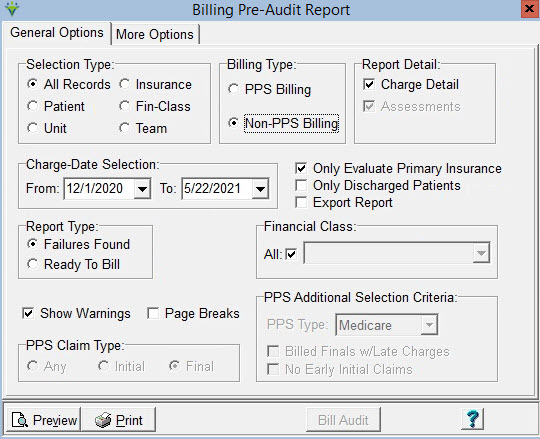
Report Detail: Select the
level of detail to display on the report.
Charge-Date
Selection: Enter the desired date range. Charge dates are used as the
selection criteria if no cert period is present.
Only
Evaluate Primary Insurance: Check to only report patients who have the
specified insurance/financial class type as their primary payer.
Only Discharged Patients: Check to
include only patients with a discharge date present.
Export Report: Choose to print report as an XLS
file.
Report Type: Select 'Failures
Found' to identify cert periods that
are missing information required prior to billing.
Select 'Ready to Bill' to identify patients who
are ready for a Billing Audit.
Financial Class: Leave checked for
All or select one class from the drop-down list.If needing to bill a Hospice patient without a Level of Care, Financial Class must be selected.
Note:
If any "Billing Requirements" (POC, Authorization, HIPPS Code) have
been selected for a non-PPS insurance in Entity Maintenance, those
selections override the warnings selected in the More Options tab and
failures will be produced when those selected requirements are missing.
Show Warnings:
Check the
box to show warnings related to the episode (warnings will not prevent
the bill audit from being processed).
Page Breaks: if checked the report
will page break on patient.
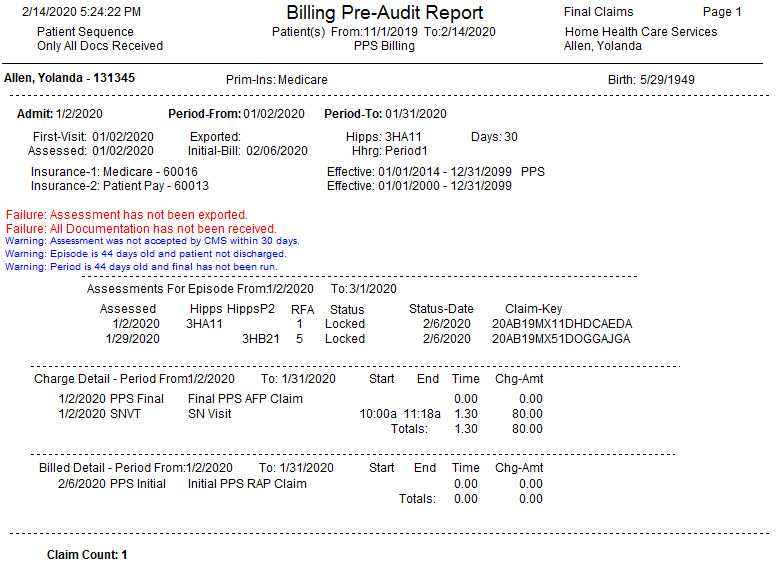
Sample Report: