|
Payment
Entry
Summary Tab:
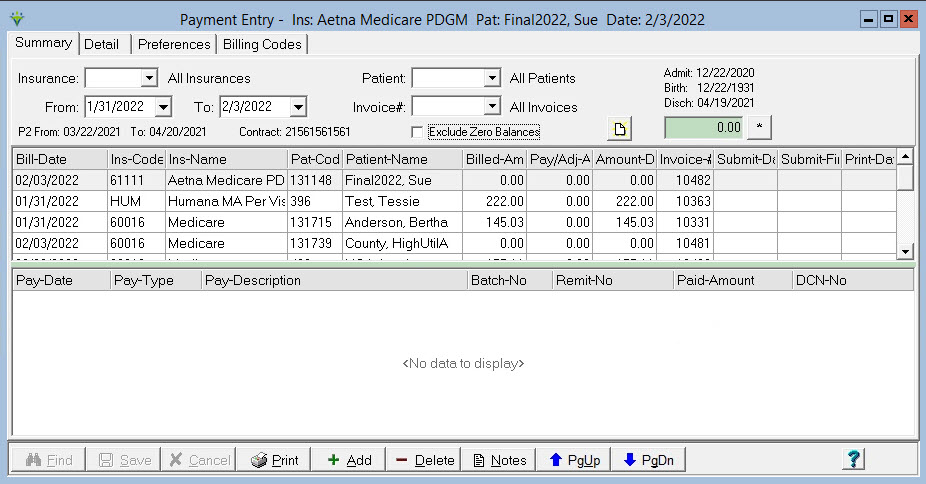
Insurance: Select an individual insurance or leave blank to see all insurance bill records. If the From date selected is more than 90 days prior to Today's Date the program will not allow both the Insurance and Patient selections to be set to All Records. Patient: Select an individual patient or leave blank to see all bill records. If the From date selected is more than 90 days prior to Today's Date the program will not allow both the Insurance and Patient selections to be set to All Records. From and To dates: Select a claim date range to see bills for which payments will be applied. Invoice#: Specify specific claim number from the remittance advice. Exclude Zero Balances: Check the box to exclude to view claims that have been paid in full prior to today's date (claims with payments posted today will still be included). Use Page
Up or Page Down to scroll up or down one page instead of
scrolling through individual claim records.
To Enter Payments/Adjustments manually: To enter claim level payments, select the Summary tab. Use the Insurance, Patient, and From/To date or Invoice filters to view the desired claim record(s). Highlight or double click the patient bill record for which the payment will be applied. Press the '+Add' button. Pay-Date: Enter the check or payment date. Pay-Type: Select a payment or adjustment code from the drop-down or select from the Pay-Description field instead. Refer to the Payment Type page for instructions to add a new payment type for the drop-down, Pay-Description: Select a payment or adjustment description from the drop-down (this field is linked to the Pay-Type field). Batch-No: Optional. Can be used to print paymetn reports by user-assigned batch number. Remit-No: Enter the check number. Paid Amount: Enter the paid or adjustment amount for the claim. Defaults to the balance due amount if this option is selected on the user Preferences tab. DCN-No:
Enter the claim Document Control Number from the remittance
advice. The number stored here can be set to pull to Adjustment claims
via the Option Set setup. Only manually entered DCNs can be altered.
Enter the remittance advice or check number in
the
Remit-No field and the document control number in the DCN-No field. The
Amount-Due To enter payments at the service date level, select the Detail tab and enter payments for each line item in the "Paid" field. When entering service line payments, the "Default Paid Amount to Amount Due" option must not be selected on the user Preferences tab. To Edit Payments/Adjustments: Payments records can be edited within 24 hours of initial entry. After 24 hours, only a manually-entered payment record's DCN can be added/altered. After 24 hours the payment should be reversed with a corresponding negative entry and a new record can be added. To Delete a payment: Press the 'Delete' button. Select 'Yes' when prompted to delete the payment record. *Note: The Master Password must be entered when deleting a payment record and the deletion will be recorded to the System Log. Instead of deleting a payment, it is recommended to enter a corresponding negative payment to reverse the incorrect payment record. To Change the Grid Order: Go To Preferences, check all grid column boxes. On the Summary tab, drag the column heading to the desired location. Close Payment Entry, re-open and in Preferences un-check any columns you wish to exclude. Detail Tab:
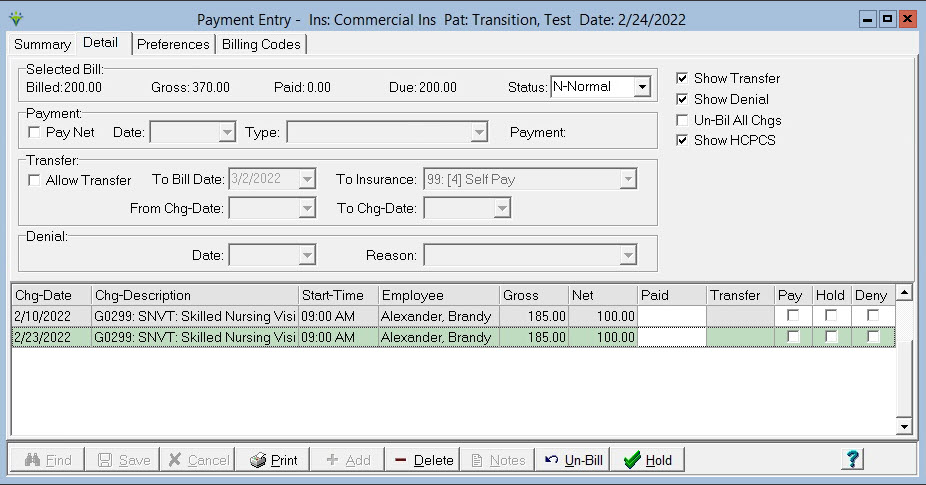
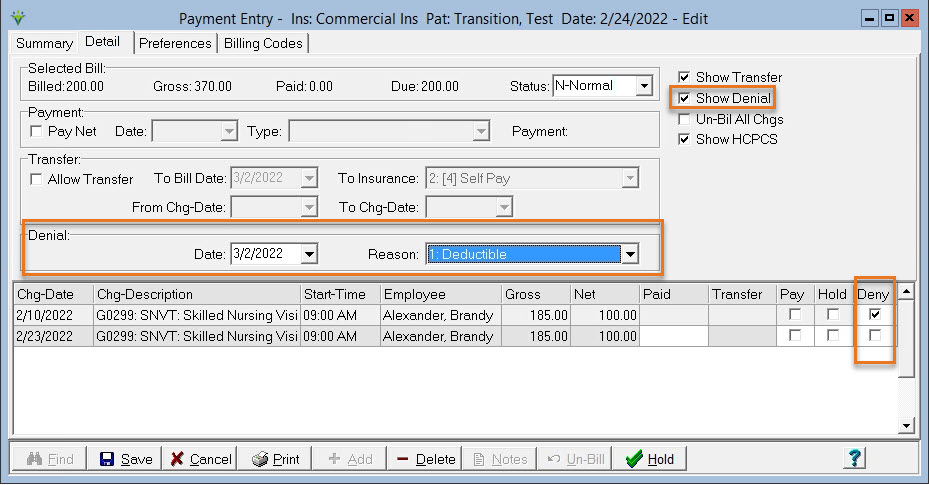
Status: Defaults to Normal. Can set to Appeal or Held or Custom Defined status based on System Settings (Data tab) descriptions. The A/R report has an option to print Held or Appealed claims or can be run for claims with selected Status. Pay Net: When this option is selected, the Paid amount will default to the Net amount after the Pay button is checked for that service date. To mark a charge as denied and to enter the Denial Reason: 'Show Denial' must be checked. Highlight the denied charged and check the 'Deny box' to enable the Denial information. Enter the Denial Date and and Reason (if a new reason is needed to be added to this drop-down, Denial Reasons can be added by users in File>File Maintenance>Category>Type = Denial Reasons). Starting In Version 1.2.9.29, denial information automatically posts for bill detail records via Electronic Payments when:
Denial codes posted via Electronic Payments can be viewed on the Denial Report. Access the A/R>Denial Reporting Menu to print a list of denied claims.
To prevent
individual charge
items from pulling to a claim (Charge Hold):
Highlight the Bill
Date on the Summary tab in
Payment Entry.
Select the Detail tab.
Check the “Hold” box for services that
you don’t want on the
claim. (use the "Hold" button in the window to mark or unmark all as
Held)
Press Save when finished. (The Billing
> Held Charge List
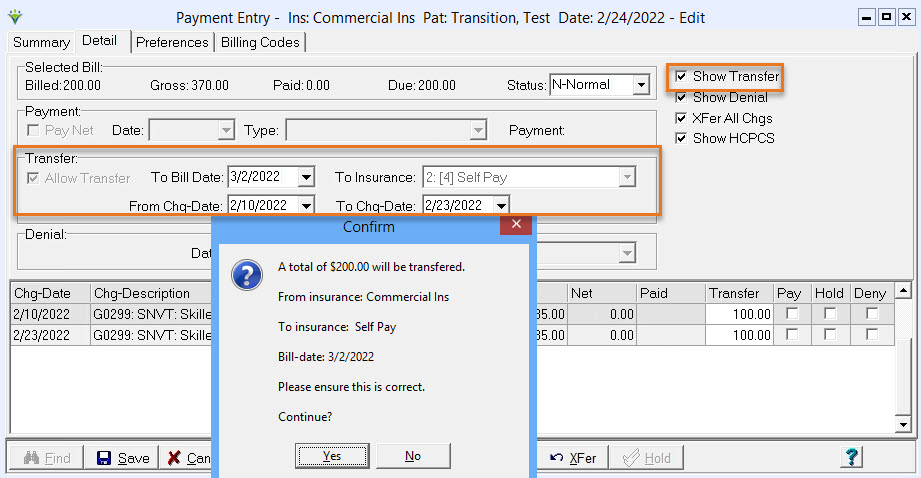
can be run to see all charges currently marked as Held). To Transfer balances: 'Show Transfer' must be checked. Check 'Allow Transfer' on the Detail tab. *Note: For this option to be enabled, the patient's other insurance needs to be present in the Patient>Insurance screen with valid dates unless billing Patient Pay. If System Settings has the Default Self Pay insurance selected the Patient Pay insurance will be generated automatically for the patient when it is selected as the To Insurance.
Select the Transfer "To Bill Date" and the Transfer "To Insurance" for the new A/R record. Enter dates in the From Chg-Date and To Chg-Date fields to only transfer charges within that date range or highlight the charge to be transferred and enter the dollar amount in the Transfer field. To transfer the net amount for all charges, check "XFer All Chgs". Click the "XFer" button. Click Save when finished and
then click Yes at the Confirm prompt if the transfer information is
correct. Note:
Transferring charges to another insurance replaces the Billing Audit
process. Once charges are transferred, follow your usual claim creation
process (generating an electronic claim or printing the hard copy
claim). Un-Bil All Chgs - Select this option on the Detail tab if you wish to un-Bill all charges for that bill date. Once selected, Click the Un-Bill button and a warning will appear. Once Yes is clicked all charges will be un-billed.
To un-bill individual charges: Highlight the charge to be
Un-Billed, click on the Un-Bill button. Select "Yes" to
Un-bill the selected charge. Once Un-billed, the charge(s) will be available under Charge>Enter/Maintain for editing or deletion. *Note when Un-Billing PPS claims, the Final PPS AFP Claim charge should be Un-Billed first, then the services, then the Initial PPS RAP Claim charge. If Un-Billing a Final charge to re-post a Final Bill Audit, un-bill one service item in addition to the Final claim charge. Preferences tab:
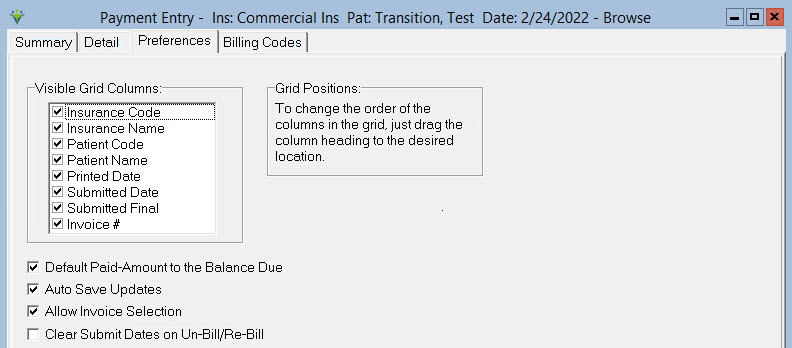
Visible Grid Columns: Select which fields are to appear on the Summary screen. Printed Date refers to the date the hard copy claim was printed in the system. Submitted Date refers to the date the electronic claim was generated for the RAP. Submitted Final is the date the electronic Final claim was generated. Settings are user and workstation specific. Default
Paid-Amount to the Balance Due: If selected, when entering a payment
the program will pre-fill the paid amount with the outstanding claim
balance. NOTE: Do not use use this option if you are entering line
payments on the Detail tab for each line item. It should only be
selected if all payments are made from the Summary screen. Show Denial Information: Select to allow Denial tracking on Detail tab. Auto Save Updates: Check to have the program auto-save changes. Allow Invoice Selection: Check to allow selection of claims by invoice number. Clear Submit Date on Un-Bill: Check to clear out the Submit Date from the claim when a charge(s) is unbilled from the Payment Detail menu. Billing Codes Tab:
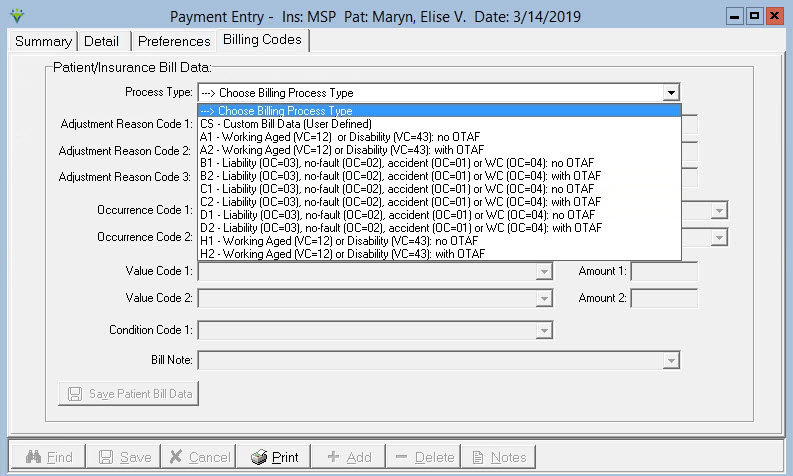
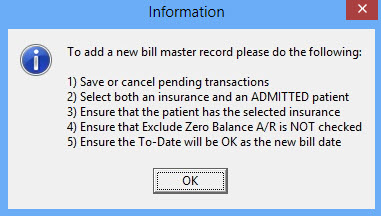
Process Type: Select a Process Type. Series A-H are for MSP billing scenarios and any elements not required for the selected process will be disabled. If any required fields are left blank an error message will generate when saving the record. Note: For the Bill Note field, the user can select from the drop-down or manually enter a value. To Create a zero-balance A/R record (used to enter patient pre-pays): On the Summary tab, enter a specific Patient and Insurance combination for the new A/R record. Enter the Bill Date for the A/R record in both the From and To Date fields. Click You will be prompted to confirm your selections: 
Select 'Yes' and the new zero-balance A/R record will be created. If the criteria for creating an A/R record hasn't been met, a message will display. Change or correct the necessary information and try again.
To Inactivate A/R records: Highlight the Bill Date you wish to inactivate and press the 'Delete' button. Select 'Yes' when prompted to inactivate the A/R record. *Note: Prior to inactivating A/R records all charges under the detail tab must be un-billed and all payment records deleted. Click Print to preview or print a Payment Report from this menu. Click Notes to add or view Bill Notes or A/R Notes for the selected record. If a Bill Note type is present, the font turns red. A/R Notes pertain to the patient's insurance information. Bill Notes are specific to the individual claim record. Both can be set to show on the A/R Report via the More Options checkbox of the report. |

 :
: